Contents Menu Expand Light mode Dark mode Auto light/dark, in light mode Auto light/dark, in dark mode Skip to content
CANNs 1.0.1 documentation
Light Logo Dark Logo
CANNs 1.0.1 documentation

Languages / 语言:

  • English
    • Why CANNs?
    • Quick Starts
      • Installation Guide
      • How to Build a CANN Model?
      • How to Generate Task Data?
      • How to Analyze CANN Models?
      • How to Analyze Experimental Data?
      • How to Train Brain-Inspired Models?
    • Core Concepts
      • Design Philosophy & Architecture Overview
      • Model Collections
      • Task Generators
      • Analysis Methods
      • Brain-Inspired Training
    • Full Detail Tutorials
      • Scenario 1: CANN Modeling and Simulation
        • Tutorial 1: Building and Using CANN Models
        • Tutorial 2: Task Generation and CANN Simulation
        • Tutorial 3: Analysis and Visualization Methods
        • Tutorial 4: CANN Parameter Effects
        • Tutorial 5: Grid Cell Velocity-Based Path Integration and Spatial Representation Analysis
        • Tutorial 6: Hierarchical Path Integration Network
        • Tutorial 7: Theta Sweep in Head Direction and Grid Cell System
        • Tutorial 8: Theta Sweep Place Cell Network
      • Scenario 2: Data Analysis and Neural Decoding
        • Tutorial 1: ASA Pipeline: End-to-End Decoding of Experimental Data
        • Tutorial 2: 1D CANN: ROI Bump Fitting Tutorial
        • Tutorial 3: Cell Classification
        • Tutorial 4: RNN Fixed Point Analysis Tutorial: FlipFlop Task Example
      • Scenario 3: Brain-Inspired Learning
        • Tutorial: Pattern Storage and Recall with Hebbian Learning
      • Scenario 4: End-to-End Research Workflow
        • Tutorial 1: ASA GUI End-to-End Analysis Tutorial
        • Tutorial 2: End-to-End ASA TUI Analysis Tutorial (Legacy)
        • Tutorial 3: Model Gallery TUI Tutorial
    • References
    • GitHub Repository
    • GitHub Issues
    • Discussions
  • 中文
    • 为什么选择 CANNs?
    • 快速入门
      • 安装指南
      • 如何构建 CANN 模型?
      • 如何生成任务数据?
      • 如何分析 CANN 模型?
      • 如何分析实验数据?
      • 如何训练脑启发模型?
    • 核心概念
      • 设计哲学与架构概览
      • 模型集合
      • 任务生成器
      • 分析方法
      • 脑启发训练
    • 详细教程
      • 场景1: CANN建模与仿真
        • 教程 1:构建和使用 CANN 模型
        • 教程 2:任务生成与 CANN 仿真
        • 教程 3: 分析与可视化方法
        • 教程 4: CANN 参数效应
        • 教程 5:网格细胞的路径积分及其空间表征分析
        • 教程 6:层级化路径积分网络
        • 教程 7:头向细胞与网格细胞系统中的 Theta 扫描
        • 教程 8:Theta 扫过位置细胞网络
      • 场景2: 数据分析与神经解码
        • 教程1:ASA Pipeline:实验数据解码全流程
        • 教程2:1D CANN:ROI Bump 拟合教程
        • 教程3:Cell Classification(细胞分类)
        • 教程4:RNN 不动点分析教程:FlipFlop 任务示例
      • 场景3: 脑启发学习
        • 教程:使用赫布学习进行模式存储与回忆
      • 场景4: 端到端研究工作流
        • 教程1:ASA GUI 端到端分析教程
        • 教程2:ASA TUI 端到端分析教程(旧版)
        • 教程3:模型画廊 TUI 教程
    • 参考文献
    • GitHub 仓库
    • GitHub Issues
    • 讨论区
  • API Reference
    • canns
      • canns.__main__
      • canns.analyzer
        • canns.analyzer.data
          • canns.analyzer.data.asa
            • canns.analyzer.data.asa.coho
            • canns.analyzer.data.asa.cohomap
            • canns.analyzer.data.asa.cohomap_vectors
            • canns.analyzer.data.asa.cohospace
            • canns.analyzer.data.asa.cohospace_phase_centers
            • canns.analyzer.data.asa.cohospace_scatter
            • canns.analyzer.data.asa.config
            • canns.analyzer.data.asa.decode
            • canns.analyzer.data.asa.embedding
            • canns.analyzer.data.asa.fly_roi
            • canns.analyzer.data.asa.fr
            • canns.analyzer.data.asa.path
            • canns.analyzer.data.asa.plotting
            • canns.analyzer.data.asa.tda
            • canns.analyzer.data.asa.utils
          • canns.analyzer.data.cell_classification
            • canns.analyzer.data.cell_classification.core
              • canns.analyzer.data.cell_classification.core.btn
              • canns.analyzer.data.cell_classification.core.grid_cells
              • canns.analyzer.data.cell_classification.core.grid_modules_leiden
              • canns.analyzer.data.cell_classification.core.head_direction
              • canns.analyzer.data.cell_classification.core.spatial_analysis
            • canns.analyzer.data.cell_classification.io
              • canns.analyzer.data.cell_classification.io.matlab_loader
            • canns.analyzer.data.cell_classification.utils
              • canns.analyzer.data.cell_classification.utils.circular_stats
              • canns.analyzer.data.cell_classification.utils.correlation
              • canns.analyzer.data.cell_classification.utils.geometry
              • canns.analyzer.data.cell_classification.utils.image_processing
            • canns.analyzer.data.cell_classification.visualization
              • canns.analyzer.data.cell_classification.visualization.btn_plots
              • canns.analyzer.data.cell_classification.visualization.grid_plots
              • canns.analyzer.data.cell_classification.visualization.hd_plots
        • canns.analyzer.metrics
          • canns.analyzer.metrics.spatial_metrics
          • canns.analyzer.metrics.systematic_ratemap
          • canns.analyzer.metrics.utils
        • canns.analyzer.model_specific
          • canns.analyzer.model_specific.hopfield
        • canns.analyzer.slow_points
          • canns.analyzer.slow_points.checkpoint
          • canns.analyzer.slow_points.finder
          • canns.analyzer.slow_points.fixed_points
          • canns.analyzer.slow_points.visualization
        • canns.analyzer.visualization
          • canns.analyzer.visualization.core
            • canns.analyzer.visualization.core.animation
            • canns.analyzer.visualization.core.backend
            • canns.analyzer.visualization.core.config
            • canns.analyzer.visualization.core.jupyter_utils
            • canns.analyzer.visualization.core.rendering
            • canns.analyzer.visualization.core.writers
          • canns.analyzer.visualization.energy_plots
          • canns.analyzer.visualization.spatial_plots
          • canns.analyzer.visualization.spike_plots
          • canns.analyzer.visualization.theta_sweep_plots
          • canns.analyzer.visualization.tuning_plots
      • canns.data
        • canns.data.datasets
        • canns.data.loaders
      • canns.models
        • canns.models.basic
          • canns.models.basic.cann
          • canns.models.basic.grid_cell
          • canns.models.basic.hierarchical_model
          • canns.models.basic.theta_sweep_model
        • canns.models.brain_inspired
          • canns.models.brain_inspired.hopfield
          • canns.models.brain_inspired.linear
          • canns.models.brain_inspired.spiking
        • canns.models.hybrid
      • canns.pipeline
        • canns.pipeline.__main__
        • canns.pipeline.asa
          • canns.pipeline.asa.__main__
          • canns.pipeline.asa.app
          • canns.pipeline.asa.runner
          • canns.pipeline.asa.screens
          • canns.pipeline.asa.state
          • canns.pipeline.asa.widgets
        • canns.pipeline.asa_gui
          • canns.pipeline.asa_gui.__main__
          • canns.pipeline.asa_gui.analysis_modes
            • canns.pipeline.asa_gui.analysis_modes.base
            • canns.pipeline.asa_gui.analysis_modes.batch_mode
            • canns.pipeline.asa_gui.analysis_modes.cohomap_mode
            • canns.pipeline.asa_gui.analysis_modes.cohospace_mode
            • canns.pipeline.asa_gui.analysis_modes.decode_mode
            • canns.pipeline.asa_gui.analysis_modes.fr_mode
            • canns.pipeline.asa_gui.analysis_modes.frm_mode
            • canns.pipeline.asa_gui.analysis_modes.gridscore_mode
            • canns.pipeline.asa_gui.analysis_modes.pathcompare_mode
            • canns.pipeline.asa_gui.analysis_modes.tda_mode
          • canns.pipeline.asa_gui.app
          • canns.pipeline.asa_gui.controllers
            • canns.pipeline.asa_gui.controllers.analysis_controller
            • canns.pipeline.asa_gui.controllers.preprocess_controller
          • canns.pipeline.asa_gui.core
            • canns.pipeline.asa_gui.core.cache
            • canns.pipeline.asa_gui.core.runner
            • canns.pipeline.asa_gui.core.state
            • canns.pipeline.asa_gui.core.worker
          • canns.pipeline.asa_gui.main_window
          • canns.pipeline.asa_gui.models
            • canns.pipeline.asa_gui.models.config
            • canns.pipeline.asa_gui.models.job
            • canns.pipeline.asa_gui.models.presets
          • canns.pipeline.asa_gui.resources
          • canns.pipeline.asa_gui.utils
            • canns.pipeline.asa_gui.utils.formatters
            • canns.pipeline.asa_gui.utils.io_adapters
            • canns.pipeline.asa_gui.utils.validators
          • canns.pipeline.asa_gui.views
            • canns.pipeline.asa_gui.views.help_content
            • canns.pipeline.asa_gui.views.pages
              • canns.pipeline.asa_gui.views.pages.analysis_page
              • canns.pipeline.asa_gui.views.pages.preprocess_page
            • canns.pipeline.asa_gui.views.panels
            • canns.pipeline.asa_gui.views.widgets
              • canns.pipeline.asa_gui.views.widgets.artifacts_tab
              • canns.pipeline.asa_gui.views.widgets.drop_zone
              • canns.pipeline.asa_gui.views.widgets.file_list
              • canns.pipeline.asa_gui.views.widgets.gridscore_tab
              • canns.pipeline.asa_gui.views.widgets.help_dialog
              • canns.pipeline.asa_gui.views.widgets.image_tab
              • canns.pipeline.asa_gui.views.widgets.image_viewer
              • canns.pipeline.asa_gui.views.widgets.log_box
              • canns.pipeline.asa_gui.views.widgets.pathcompare_tab
              • canns.pipeline.asa_gui.views.widgets.popup_combo
        • canns.pipeline.gallery
          • canns.pipeline.gallery.__main__
          • canns.pipeline.gallery.app
          • canns.pipeline.gallery.runner
          • canns.pipeline.gallery.state
        • canns.pipeline.launcher
      • canns.task
        • canns.task.closed_loop_navigation
        • canns.task.navigation_base
        • canns.task.open_loop_navigation
        • canns.task.tracking
      • canns.trainer
        • canns.trainer.bcm
        • canns.trainer.hebbian
        • canns.trainer.oja
        • canns.trainer.sanger
        • canns.trainer.stdp
        • canns.trainer.utils
      • canns.typing
      • canns.utils
        • canns.utils.benchmark
        • canns.utils.example_outputs
Back to top
View this page
Edit this page

Tutorial 3: Model Gallery TUI Tutorial

This tutorial introduces the usage of the Model Gallery TUI. The Gallery runs a complete analysis pipeline for three model types (CANN1D / CANN2D / GridCell) in an interactive terminal interface, covering all subfigure visualizations corresponding to canns-experiments/figure2, and outputs results as PNG files.

Composite Full Result Figure

See Composite Full Result Figure. This will be replaced with actual output later.
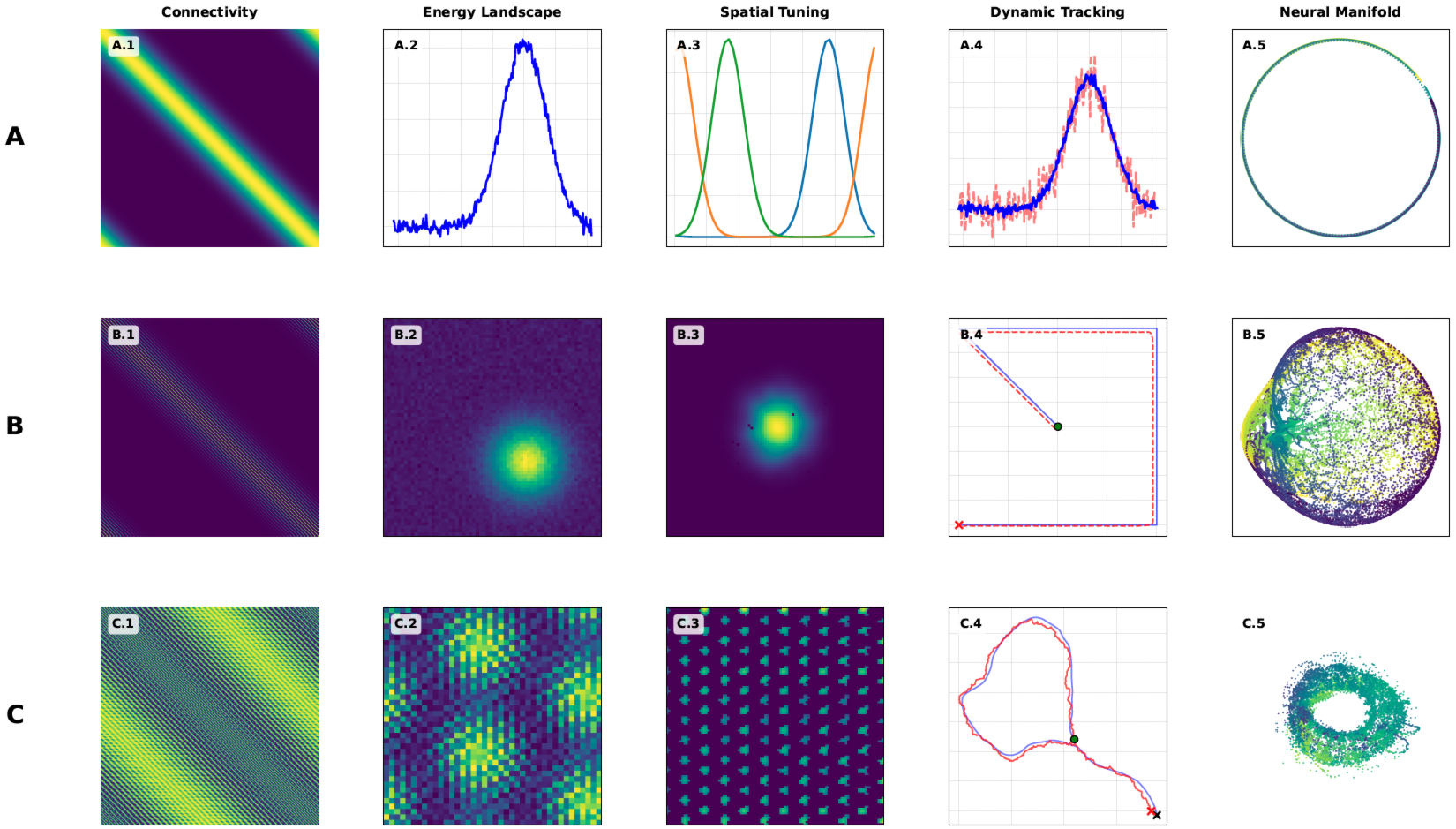
figure2 full result figure

Composite Full Result Figure

Tutorial Objectives

  • Select models and analysis modes in the TUI to generate image results

  • Understand the 5 standard visualizations for each model (aligned with subfigures in Composite Full Result Figure)

  • Master the result directory structure, file naming conventions, and log paths

Target Audience

  • Researchers who wish to quickly reproduce experimental script visualizations

  • Users who need to perform model analysis and result browsing within the terminal

Prerequisites

  • CANNs installed (recommended via pip install -e . or pip install canns)

  • Terminal width should be at least 120 columns, with a minimum of 100 columns

Launching the Model Gallery TUI

Recommended method: Use the unified entry point canns-tui, then select Model Gallery after startup.

canns-tui
# Select Model Gallery on the selection page after launch

You can also launch the Gallery directly:

python -m canns.pipeline.gallery
# or
canns-gallery

If a size warning appears after launch, please enlarge your terminal window or reduce the font size.

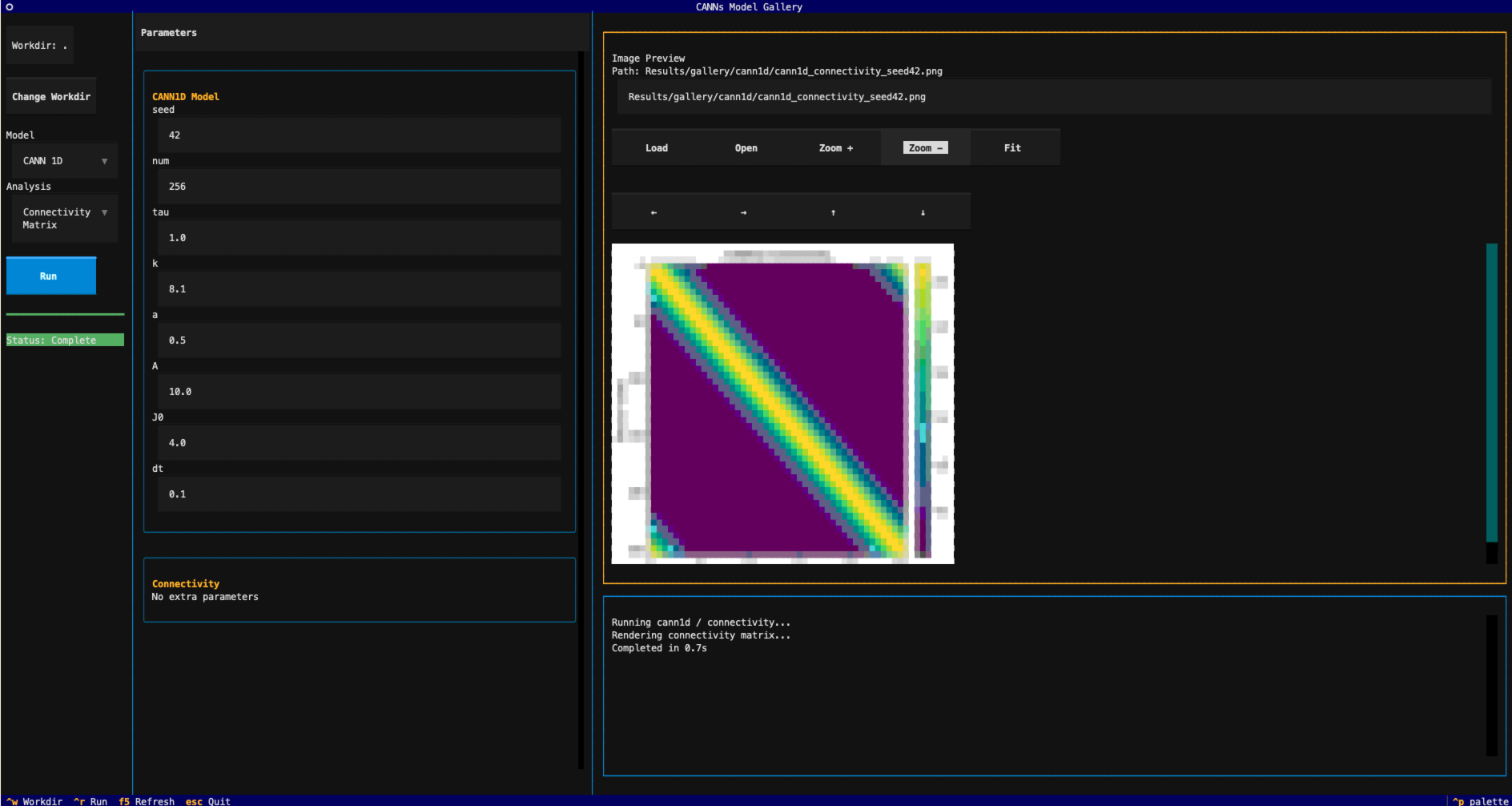
Interface Overview
Model Gallery TUI interface overview

Model Gallery TUI Interface Overview

Interface Structure

  • Left: Model selection, analysis mode, run button, progress, and status

  • Center: Parameter panel (scrollable)

  • Right: Result preview and logs

Interface Element List

Left Operation Area

Model

Select CANN1D / CANN2D / GridCell.

Analysis

Choose the analysis mode corresponding to the selected model (see “Model and Analysis Overview” below).

Run

Start the current analysis task.

Progress Bar

Displays task execution progress.

Status

Shows run status (Idle / Running / Success / Error).

Center Parameter Area

Parameters

Parameter panel for the current model; content is scrollable.

Model Parameters

Includes network size, time steps, connection parameters, etc.

Analysis Parameters

Different analysis modes have different parameters (e.g., duration / resolution / warmup).

Right Result Area

Image Preview

Terminal preview of result images (character-based). Use Open to view externally.

Log Viewer

Task runtime logs (including errors and path hints).

Keyboard Shortcuts

Ctrl-W

Switch working directory (Workdir).

Ctrl-R

Run the current analysis.

F5

Refresh preview (reload result image).

Esc

Exit the application.

Model and Analysis Overview

The Gallery’s analysis items are aligned with canns-experiments/figure2 (see Composite Full Result Figure):

CANN1D (A.1–A.5 / corresponding to the first row of Composite Full Result Figure):

  • Connectivity Matrix

  • Energy Landscape

  • Tuning Curves

  • Template Matching

  • Neural Manifold

CANN2D (B.1–B.5 / corresponding to the second row of Composite Full Result Figure):

  • Connectivity Matrix

  • Energy Landscape

  • Firing Field

  • Trajectory Comparison

  • Neural Manifold

GridCell (C.1–C.5 / corresponding to the third row of Composite Full Result Figure):

  • Connectivity Matrix

  • Energy Landscape

  • Firing Field (systematic rate map)

  • Path Integration

  • Neural Manifold

Parameter Description (Key Parameters)

CANN1D:

  • num: Number of neurons (default 256).

  • dt: Time step (default 0.1).

  • tuning_neurons: Comma-separated neuron indices (e.g., 64,128,192).

  • manifold_warmup: Warmup duration to remove initial transient dynamics.

CANN2D:

  • length: Network side length (default 64).

  • field_resolution: Firing field grid resolution (default 80).

  • traj_warmup: Trajectory comparison warmup.

  • manifold_downsample: Manifold sampling sparsification.

GridCell:

  • dt: Time step for the grid cell model (default 5e-4).

  • field_resolution: Systematic rate map resolution (default 100).

  • energy_heal_steps / path_heal_steps: Initialization stabilization steps.

Workflow

  1. Launch canns-tui and enter Model Gallery from the selection page.n

  2. Select Model and Analysis on the left.n

  3. Adjust model and analysis parameters in the center parameter area (scrollable).n

  4. Click Run and wait for execution to complete.n

  5. Preview result images on the right or click Open to use an external viewer.n

Result Output

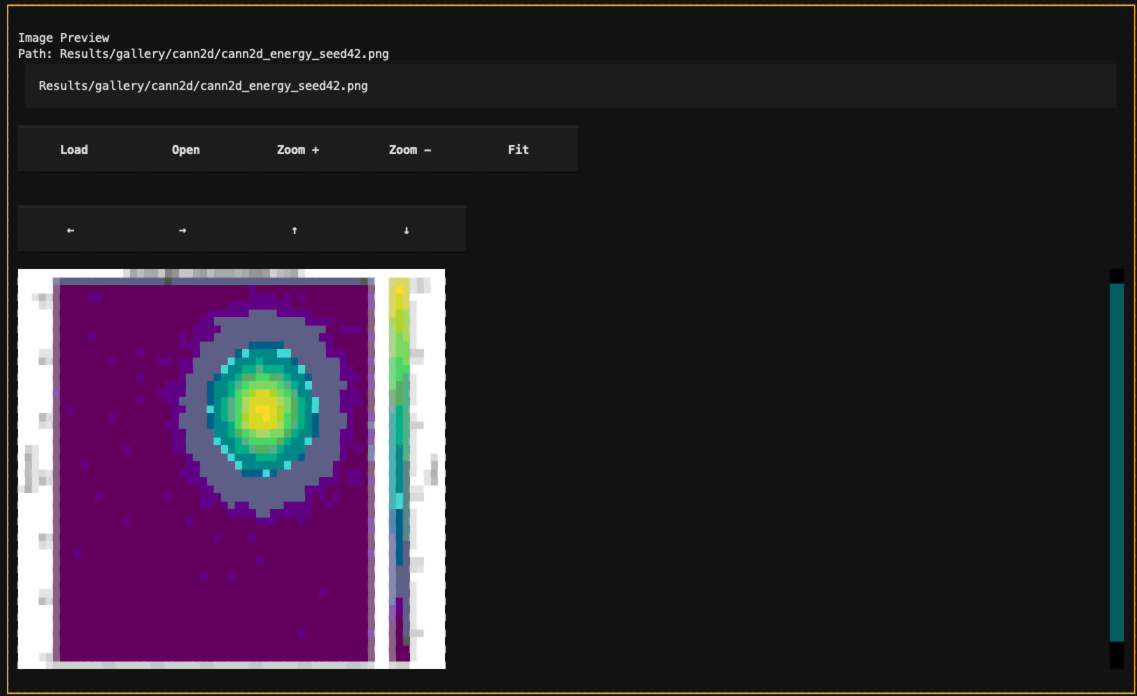
All results are saved as PNG files under the working directory:

<workdir>/Results/gallery/<model>/

Filename example:

cann1d_energy_seed42.png

Logs and Preview

Runtime logs are displayed in real-time in the right-side Log Viewer. To save or copy logs, you can directly select and copy them in the terminal, or add a log file output feature when needed.

Placeholder for Interface Screenshots
Gallery result interface

Result Interface Screenshot

Common Issues

  • Scrollbar not visible: Please increase terminal height or use the mouse wheel to scroll the parameter area.

  • Long runtime: Some analyses (e.g., CANN2D / GridCell) use heavy default parameters; consider reducing duration / resolution / num_batches.

Next Steps

  • Wait for replacement of placeholder screenshots and composite figures with real ones

  • Extend Gallery analysis items based on your actual parameter requirements

Next
References
Previous
Tutorial 2: End-to-End ASA TUI Analysis Tutorial (Legacy)
Copyright © 2025, Sichao He
Made with Sphinx and @pradyunsg's Furo
On this page
  • Tutorial 3: Model Gallery TUI Tutorial
    • Composite Full Result Figure
    • Tutorial Objectives
    • Target Audience
    • Prerequisites
    • Launching the Model Gallery TUI
    • Interface Overview
    • Interface Structure
    • Interface Element List
      • Left Operation Area
      • Center Parameter Area
      • Right Result Area
    • Keyboard Shortcuts
    • Model and Analysis Overview
    • Parameter Description (Key Parameters)
    • Workflow
    • Result Output
    • Logs and Preview
    • Placeholder for Interface Screenshots
    • Common Issues
    • Next Steps