How to Generate Task Data?
Goal: By the end of this guide, you’ll be able to generate task inputs for CANN simulations.
Estimated Reading Time: 10 minutes
Introduction
CANN models need input stimuli to simulate realistic behaviors—tracking moving targets, encoding spatial positions, or responding to population-coded signals. Instead of manually creating these inputs, the Task API provides ready-to-use generators for common experimental paradigms.
This guide shows you how to:
Create a smooth tracking task
Generate task data
Understand the task data structure
Use task data in your simulations
What are Tasks?
Tasks are objects that generate time-varying input stimuli for CANN models. They handle the complexity of:
Creating biologically realistic input patterns
Managing timing and duration
Formatting data for efficient simulation loops
Tracking metadata (e.g., target positions, velocities)
Key principle: Tasks generate inputs → Models consume inputs in simulation loops.
Creating a Smooth Tracking Task
The most common task is smooth tracking, where a stimulus moves smoothly across the neural population:
[1]:
import brainpy.math as bm
from canns.models.basic import CANN1D
from canns.task.tracking import SmoothTracking1D
import jax

# Set up environment and model (from previous guide)
bm.set_dt(0.1)
cann = CANN1D(num=512)

# Create a smooth tracking task
task = SmoothTracking1D(
    cann_instance=cann,                # Link to the CANN model
    Iext=(1.0, 0.75, 2.0, 1.75, 3.0),  # External input positions (in radians)
    duration=(10.0, 10.0, 10.0, 10.0), # Duration at each position (ms)
    time_step=bm.get_dt()  # Simulation time step
)
What’s happening:
cann_instance: The task needs the model instance to access itsget_stimulus_by_pos()method, which generates spatially-localized input patterns for given positions. The task also uses the model’s structure (neuron positions, network size) to create appropriate stimuli.Iext: Sequence of target positions where the stimulus will appear (in radians, from -π to π)duration: How long the stimulus stays at each position (in milliseconds)time_step: Should match the model’sdtfor synchronization
Important: CANN models must provide a get_stimulus_by_pos(position) method that returns the input pattern for a given spatial position. This method is called by the task to generate data.
Generating the Data
Once the task is created, generate the actual input arrays:
[2]:
# Generate all task data
task.get_data()
<SmoothTracking1D> Generating Task data: 400it [00:00, 1593.79it/s]
This method pre-computes all input stimuli for the entire simulation. The data is stored in task.data.
Understanding Task Data Structure
Let’s inspect what the task generated:
[3]:
print(f"Data shape: {task.data.shape}")
print(f"Number of time steps: {task.run_steps.shape[0]}")
print(f"Time step size: {task.time_step} ms")
print(f"Total simulation time: {task.run_steps.shape[0] * task.time_step} ms")
Data shape: (400, 512)
Number of time steps: 400
Time step size: 0.1 ms
Total simulation time: 40.0 ms
[4]:
from canns.analyzer.visualization import PlotConfigs, energy_landscape_1d_static

# Create configuration for static plot
config = PlotConfigs.energy_landscape_1d_static(
    time_steps_per_second=100,
    title='Input Stimulus at t=50',
    xlabel='Position (rad)',
    ylabel='Input Strength',
    show=True
)

# Plot input at time step 50
energy_landscape_1d_static(
    data_sets={'Stimulus': (cann.x, task.data[50])},
    config=config
)
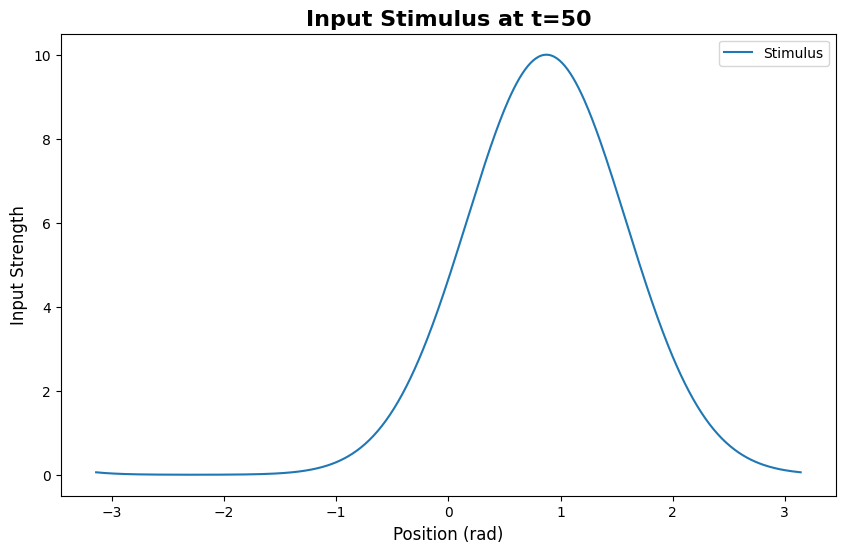
[4]:
(<Figure size 1000x600 with 1 Axes>,
 <Axes: title={'center': 'Input Stimulus at t=50'}, xlabel='Position (rad)', ylabel='Input Strength'>)
You’ll see a Gaussian-shaped bump centered at one of the Iext positions.
Using Task Data in Simulations
Now connect the task data to your model simulation:
[5]:
def run_step(t, stimulus):
    """Simulation step function."""
    cann(stimulus)  # Feed stimulus to model
    return cann.u.value, cann.r.value  # Return synaptic input and activity

# Run the simulation with task data
us, rs = bm.for_loop(
    run_step,
    operands=(task.run_steps, task.data),
    progress_bar=10
)

print(f"Synaptic input shape: {us.shape}")   # (400, 512)
print(f"Neural activity shape: {rs.shape}")  # (400, 512)
Synaptic input shape: (400, 512)
Neural activity shape: (400, 512)
The workflow:
task.dataprovides stimuli for each time stepfor_loopiterates through time stepsAt each step, the stimulus is passed to
run_stepThe model updates its state and returns results
All results are collected into arrays (
us,rs)
Complete Working Example
Here’s the full pipeline from model creation to task-driven simulation:
[6]:
import brainpy.math as bm  # :cite:p:`wang2023brainpy`
from canns.models.basic import CANN1D
from canns.task.tracking import SmoothTracking1D

# 1. Setup
bm.set_dt(0.1)

# 2. Create model (auto-initializes)
cann = CANN1D(num=512)

# 3. Create task
task = SmoothTracking1D(
    cann_instance=cann,
    Iext=(1.0, 0.75, 2.0, 1.75, 3.0),
    duration=(10.0, 10.0, 10.0, 10.0),
    time_step=bm.get_dt(),
)
task.get_data()

# 4. Run simulation
def run_step(t, stimulus):
    cann(stimulus)
    return cann.u.value, cann.r.value

us, rs = bm.for_loop(
    run_step,
    operands=(task.run_steps, task.data),
    progress_bar=10
)

print("Simulation complete!")
print(f"Captured {us.shape[0]} time steps of activity")
<SmoothTracking1D> Generating Task data: 400it [00:00, 3246.41it/s]
Simulation complete!
Captured 400 time steps of activity
Exploring Task Parameters
SmoothTracking1D is flexible. Try different configurations:
Example 1: Fast Tracking
[7]:
task_fast = SmoothTracking1D(
    cann_instance=cann,
    Iext=(0.0, 1.0, 2.0),
    duration=(5.0, 5.0),  # Shorter durations = faster transitions
    time_step=0.1
)
Example 2: Many Positions
[9]:
import jax.numpy as jnp

# Track across 10 evenly spaced positions
positions = jnp.linspace(-3.0, 3.0, 10)
durations = [8.0] * 9

task_dense = SmoothTracking1D(
    cann_instance=cann,
    Iext=tuple(positions),
    duration=tuple(durations),
    time_step=0.1
)
Example 3: Variable Durations
[10]:
# Different durations for each position
task_variable = SmoothTracking1D(
    cann_instance=cann,
    Iext=(0.0, 1.5, -1.0, 2.0),
    duration=(15.0, 5.0, 10.0),  # Stay longer at first position
    time_step=0.1
)
Other Task Types
While this guide focuses on SmoothTracking1D, the library includes other task generators:
SmoothTracking2D: 2D spatial trackingPopulationCoding: Population-coded inputsClosedLoopNavigation: Interactive navigation with feedbackOpenLoopNavigation: Pre-defined trajectories
All follow the same pattern:
Create task with parameters
Call
task.get_data()Use
task.datain simulation loops
We’ll explore these in the Full Details section.
Common Questions
Q: Can I modify task data after generation?
Yes! task.data is a JAX array you can manipulate:
[11]:
task.get_data()
# Add noise to all inputs
task.data = task.data + 0.1 * jax.random.normal(jax.random.PRNGKey(0), task.data.shape)
<SmoothTracking1D> Generating Task data: 400it [00:00, 9170.08it/s]
Q: What if I want custom input patterns?
You can create tasks as templates and modify them, or generate inputs manually:
[12]:
import jax.numpy as jnp

# Create custom input sequence
custom_data = jnp.zeros((100, 512))
for t in range(100):
    position = jnp.sin(t * 0.1)  # Sinusoidal movement
    custom_data = custom_data.at[t].set(
        jnp.exp(-0.5 * (cann.x - position)**2 / 0.3**2)
    )
Q: Do I need to call ``get_data()`` every time?
Only once per task instance. The data is cached:
[ ]:
task.get_data()  # Generates data
# ... use task.data in simulations

# If you change parameters, recreate the task
task_new = SmoothTracking1D(...)
task_new.get_data()
Next Steps
Now that you can generate task data, you’re ready to:
Analyze CANN model dynamics - Visualize energy landscapes, bump tracking, and more
Explore Task Generators - Learn about all available task types and their use cases
Full Task API Reference - Complete documentation of all task parameters and methods
Questions? Check the Core Concepts: Task Generators or GitHub Discussions.